on
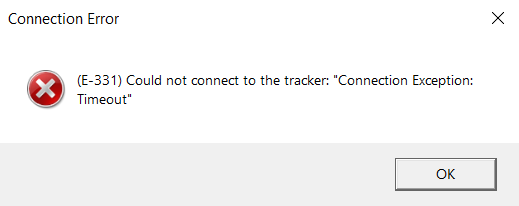
Enter the Camera IP Address
The IP address was probably change.
Only available for the VEGA Model
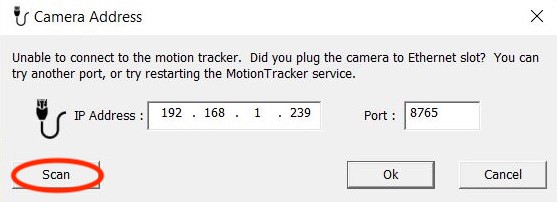
Easily find the IP address by click on the “Scan” button on the camera address dialog box:
If the scan fails to work
You can find the IP address by identifying the Mac address indicated on the camera. Use these steps to match the MAC and the IP address:
- Open NDI track
- Close NDI Track (this step is to make sure the connection with the camera will be made)
- Type (Windows key) + R . You can also click the magnifying glass at the bottom left of your screen and search “run”.
- Type “CMD”
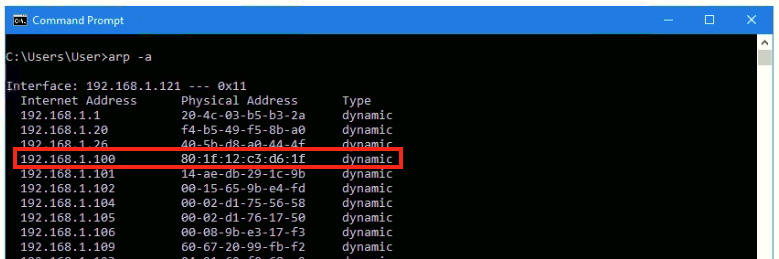
- Type or copy/paste “arp -a” (Don’t forget the space!) A list of all the connected devices will appear
- Find the the MAC address identified on the label on the back of your camera
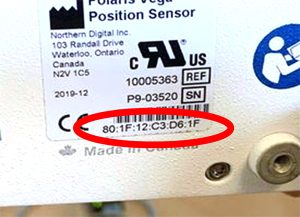
- Then, look at the connected device list on the computer. In the Dynamic IP address section, you will find the camera MAC address (if a lot of connected devices are shown, scroll up to see the dynamic section). Note the IP address associated with the Mac address of the NDI camera.
- Enter the new IP address in the “Camera Address” dialog box in Knee3D Assessment. The “Port” number should remain “8765”.